
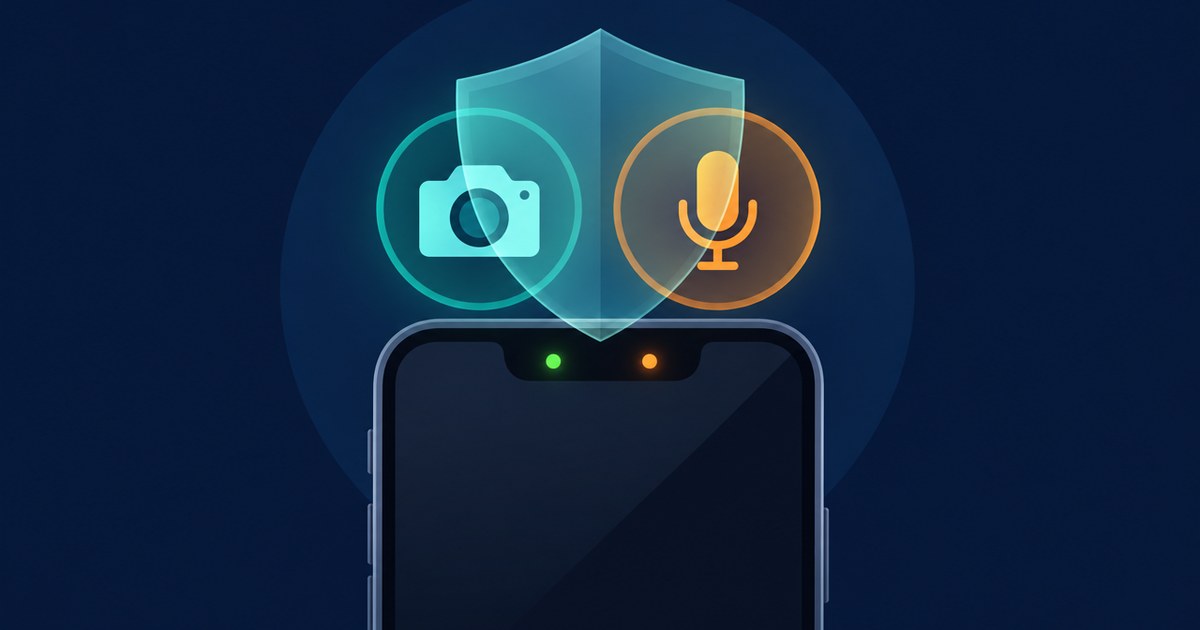

iPhones and Android phones show a coloured dot or icon when an app turns on the camera or microphone, and both let users review camera and microphone access and switch it off in a few taps.
Checking matters because apps often ask for these permissions once and keep them. Reviewing camera and microphone access takes a couple of minutes and is one of the simplest privacy checks a phone owner can make, alongside keeping the phone’s software up to date.
How do I know if an app is using my camera or microphone?
On an iPhone, look at the top of the screen. An orange indicator means an app is using the microphone; a green indicator means an app is using the camera, or the camera and microphone together, Apple says. If the “Differentiate Without Colour” setting is on, the orange dot appears as an orange square.
To see which app it is, open Control Centre by swiping down from the top-right corner. The name of the app that is using, or recently used, the camera or microphone appears at the top.
On Android phones running Android 12 or later, an icon appears in the top corner of the screen when an app accesses the camera or microphone, according to Google’s Android developer documentation. Swipe down to open Quick Settings and tap the icon to see which app is using it.
A lit indicator does not on its own mean that camera and microphone access is being misused. Video calls, voice notes, the camera app and voice assistants all switch it on. What matters is an indicator that appears when you are not using any app that needs it.
How can I see which apps used the camera recently?
iPhones have an App Privacy Report. Go to Settings, then Privacy & Security, then App Privacy Report, and turn it on. It then records how many times and when each app accessed sensitive data or sensors, including the camera and microphone, over the past seven days, according to Apple. The data is stored on the phone, and turning the report off deletes it.
On Android 12 and later, the Privacy dashboard in system settings shows a timeline of camera and microphone access, and location use, for each app. Menu names vary by manufacturer: on many phones it sits under Settings, then Security & privacy, then Privacy.
How do I turn off camera and microphone access?
To limit camera and microphone access on an iPhone, open Settings, then Privacy & Security, then Camera. The list shows every app that has asked for camera access; switch off any app that does not need it. Do the same under Microphone.
On Android, open Settings, then the Privacy or permissions section, then Permission manager, and choose Camera or Microphone. Each app can be set to allow access only while it is in use, to ask every time, or to deny access.
To block camera and microphone access entirely, Android 12 and later has two Quick Settings switches, Camera access and Mic access, that cut off the camera and microphone for every app at once. Apps then receive a blank picture or silence, and the phone reminds the user when an app tries to use them, Google’s documentation says.
For wider protection, our guides explain how to turn on two-step verification and how to check a second-hand phone. Keeping the phone updated also matters: Telegram this week began warning iPhone users on older iOS to update.
FAQ
What does the green dot on my iPhone mean?
An app is using the camera, or the camera and microphone together, according to Apple. An orange dot means only the microphone is in use.
How do I check camera and microphone access on Android?
Open Settings, go to the privacy or permissions section, open Permission manager and choose Camera or Microphone to see and change which apps are allowed. Menu names vary by manufacturer.
Can I block the camera for all apps at once?
On Android 12 and later, yes: the Camera access and Mic access switches in Quick Settings block camera and microphone access for every app. On an iPhone, access is switched off app by app in Settings, Privacy & Security.
Does a lit indicator mean my phone is hacked?
No. It means an app is using the camera or microphone. It is a concern only when it appears and no app you are using needs them.